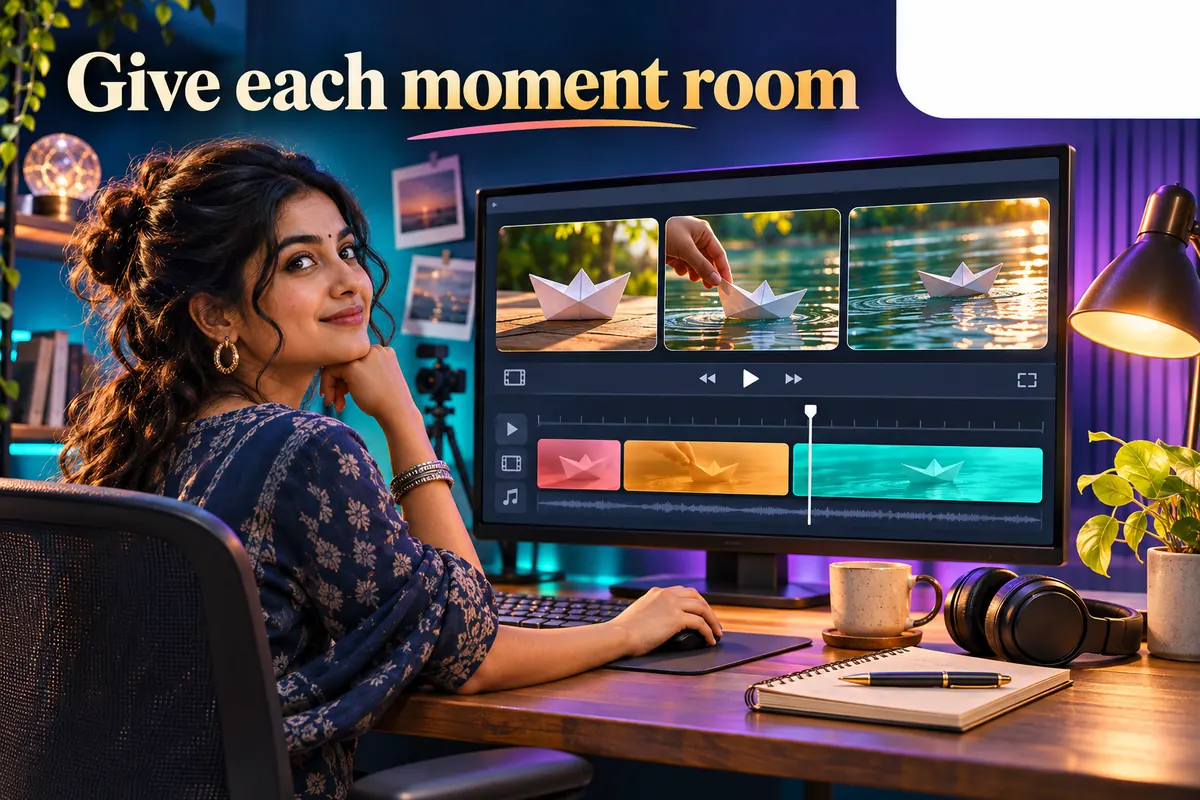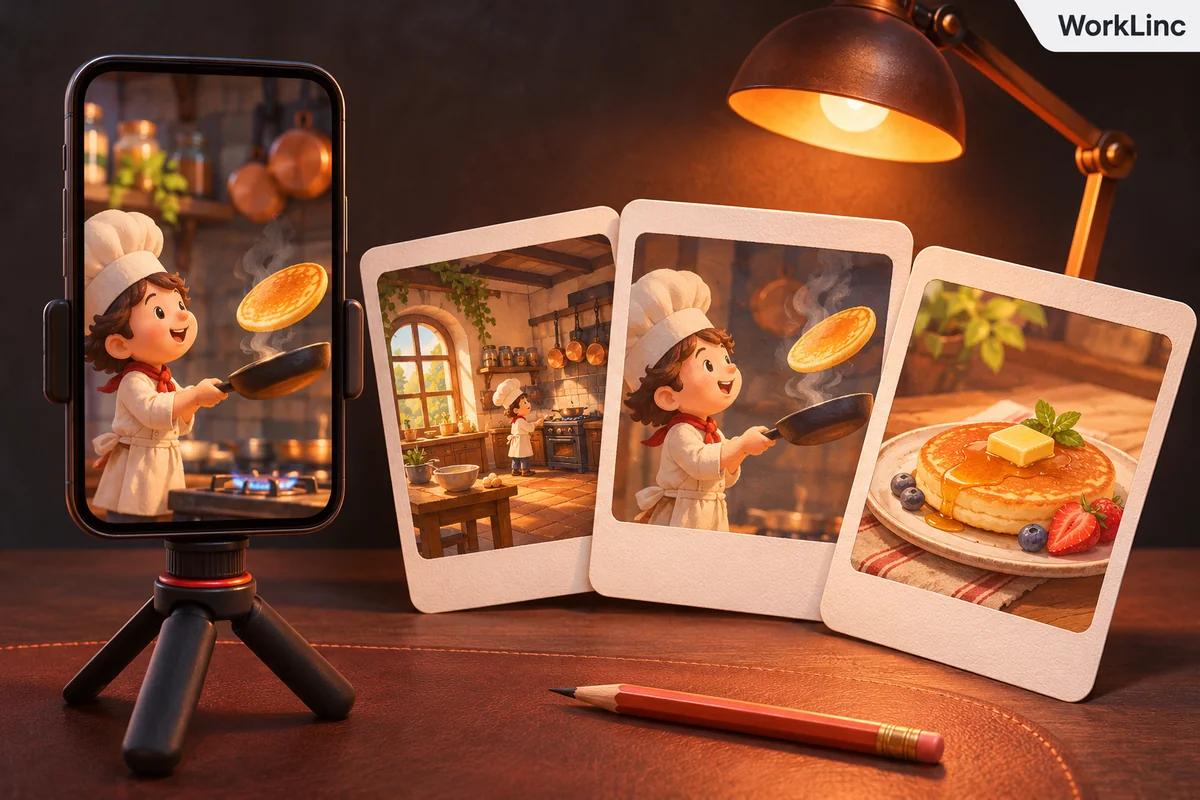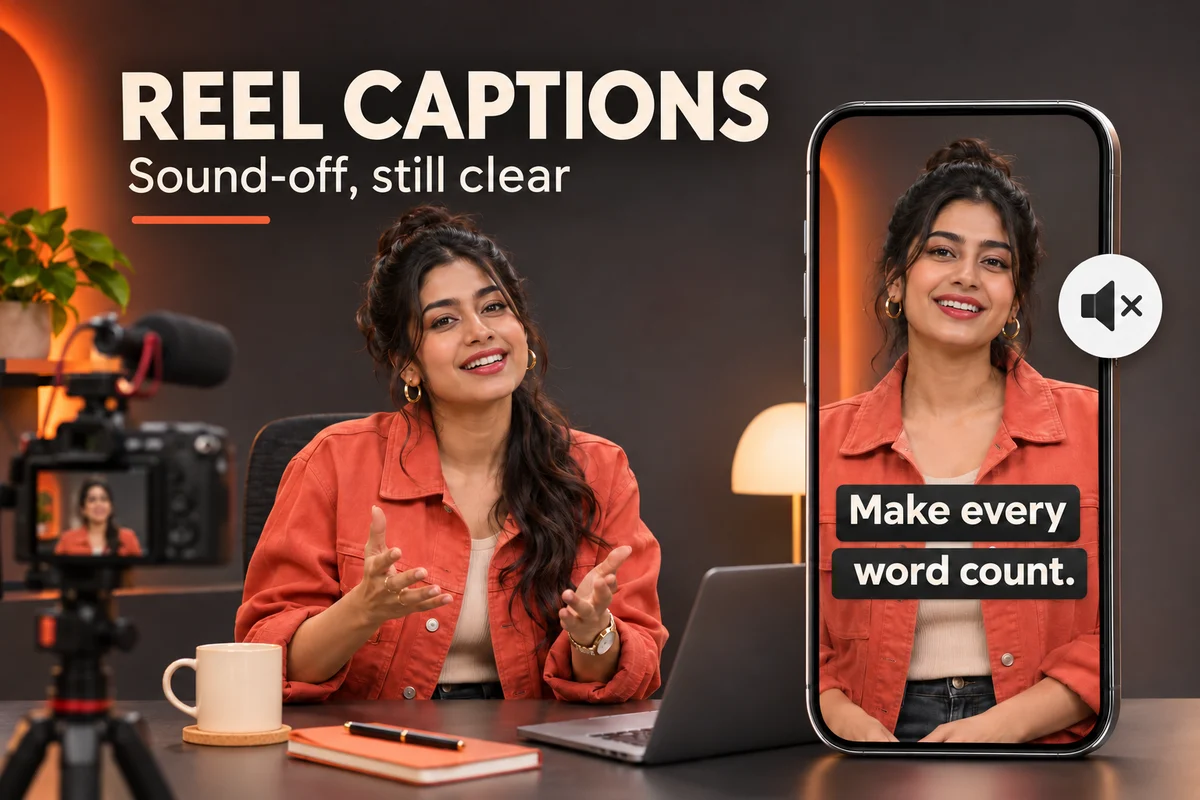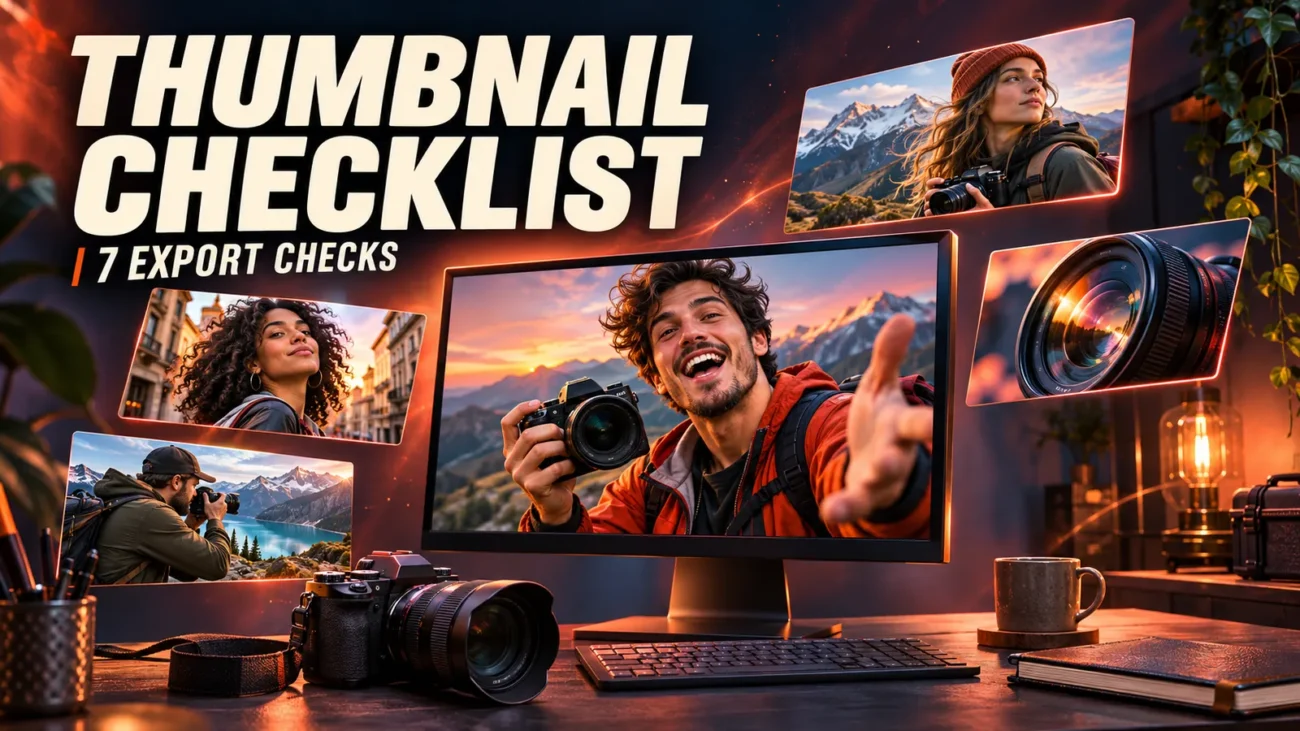










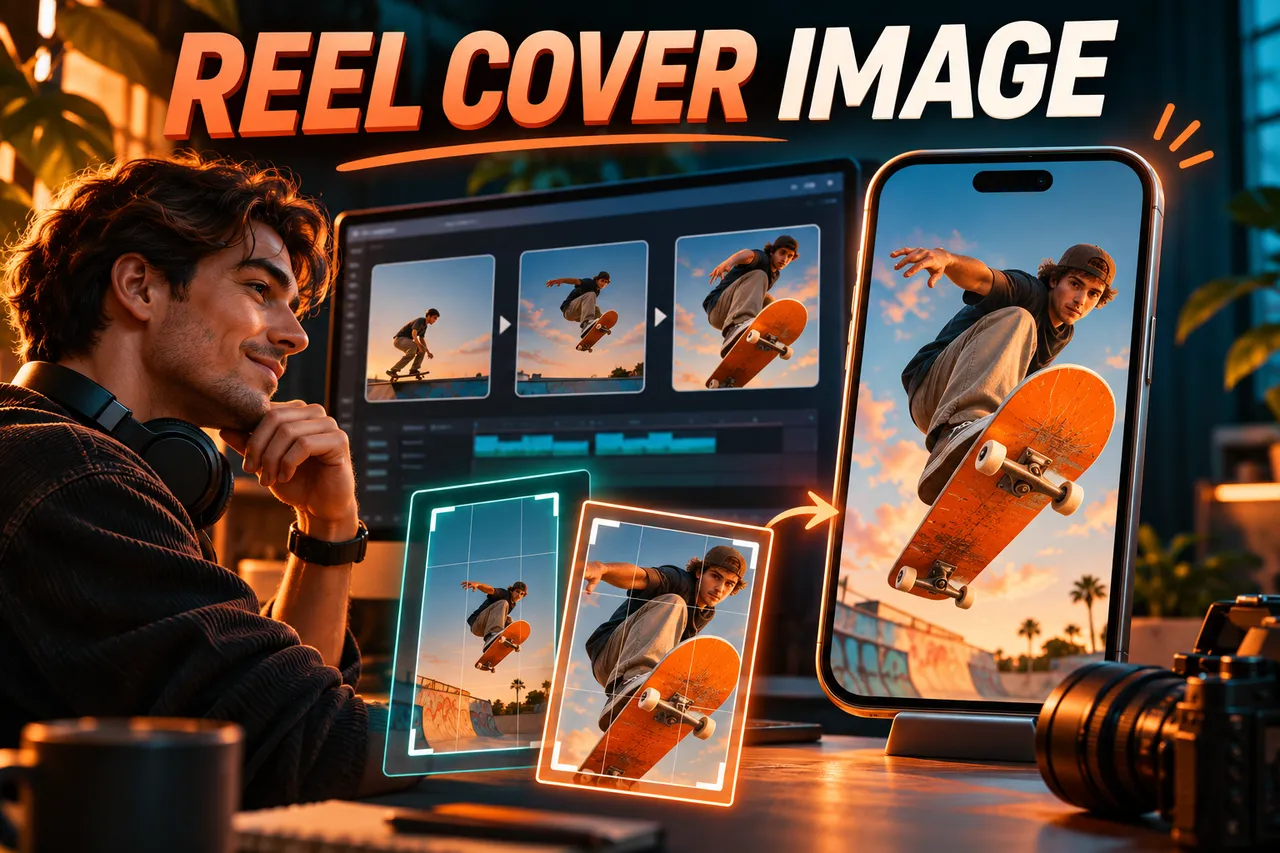
A reel cover image gives someone a first clue about your video before they open it. A fast-moving edit can be great in motion and still produce a poor cover. Pause on three frames, compare them at phone size and use these five checks to pick one.
Quick rule: Choose a clear subject first. Then test the frame at phone size before adding any text.
1. Match the reel cover image to the promise
Write down what the reel delivers in one sentence. Choose a still that makes that promise visible. If the reel explains how to clean a sneaker, show the shoe and the area being cleaned rather than a creator’s unrelated reaction.
2. Pick a frame you can read without motion
Scrub just before and after the key action to avoid blur, hands blocking the object, or an awkward expression. Name your strongest frame “side view with clean heel” so you can compare it with two alternatives instead of defaulting to the opening frame.
3. Test the reel cover crop where it will appear
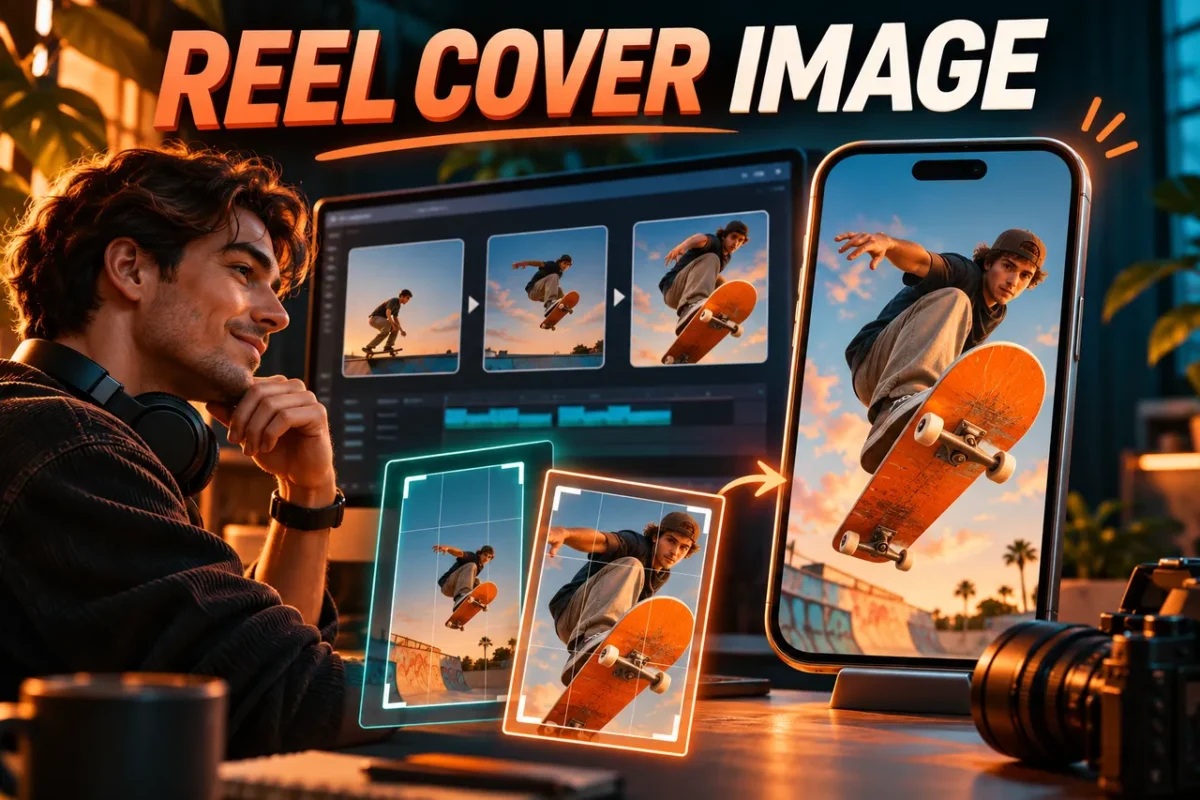
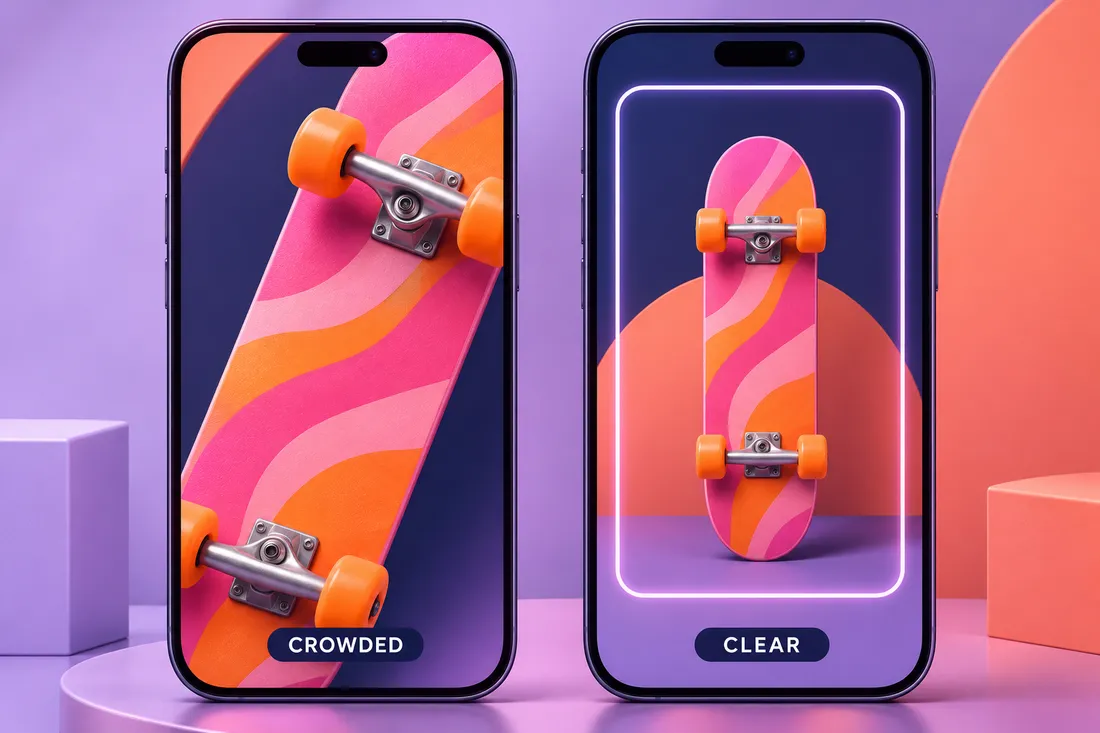
Keep the subject and essential words away from the edges. Compare the full cover with the crop shown in the app you are posting to. If you cannot preview it there yet, use a tighter crop as a stress test, not as a claim about exact dimensions. For YouTube Shorts specifically, YouTube Help describes choosing a video frame in its mobile app.
4. Make one phrase easy to scan
If the still needs text, keep it to one short phrase and set it away from busy details. Check light–dark contrast against the area where text sits. Compare a no-text version too: a clear subject can explain more than two stacked headlines.
5. Compare it beside your other covers
Look at the cover at a normal phone distance. Can you identify the subject without opening it? Does it stand out beside recent covers? Then run the Reel Export Settings checklist separately for the video file.
Try a quick three-frame comparison
For a skateboard reel, save a frame of the complete board, a close-up of a wheel and a wide view of the setting. The full board often communicates the topic quickest; the wheel may be better if the reel is about changing a bearing. Choose based on what the video teaches, not on which frame has the most detail.
If the cover needs a title, try placing the phrase in unused space, then take a screenshot of the actual app preview and shrink it beside two neighboring posts. If you can recognize the board and read the words without tapping, keep it. If not, simplify the crop or remove the text instead of making everything larger.
If you use ready-made visuals, shortlist your cover candidates while previewing clips. With the Space Reels Bundle, for example, compare an uncluttered planet frame with a busy star field and pick whichever tells your story more clearly. Check the applicable usage terms before posting.
Reel cover image questions
Can the cover be a different frame from the opening shot?
Yes, when the platform lets you select a frame. Pick one that still represents what the reel teaches or shows. A cover should set the expectation; your actual opening shot can then start the movement or explanation.
Should I add text to every cover?
No. Start without it. Add a short phrase only when the subject alone does not explain the idea, and preview how the words look on a phone. If the text competes with the subject, move it or remove it.
Is there a single crop that works everywhere?
No. Different profile grids and preview surfaces can show different portions of the image. Recheck the current app preview instead of relying on one crop template for every platform.