









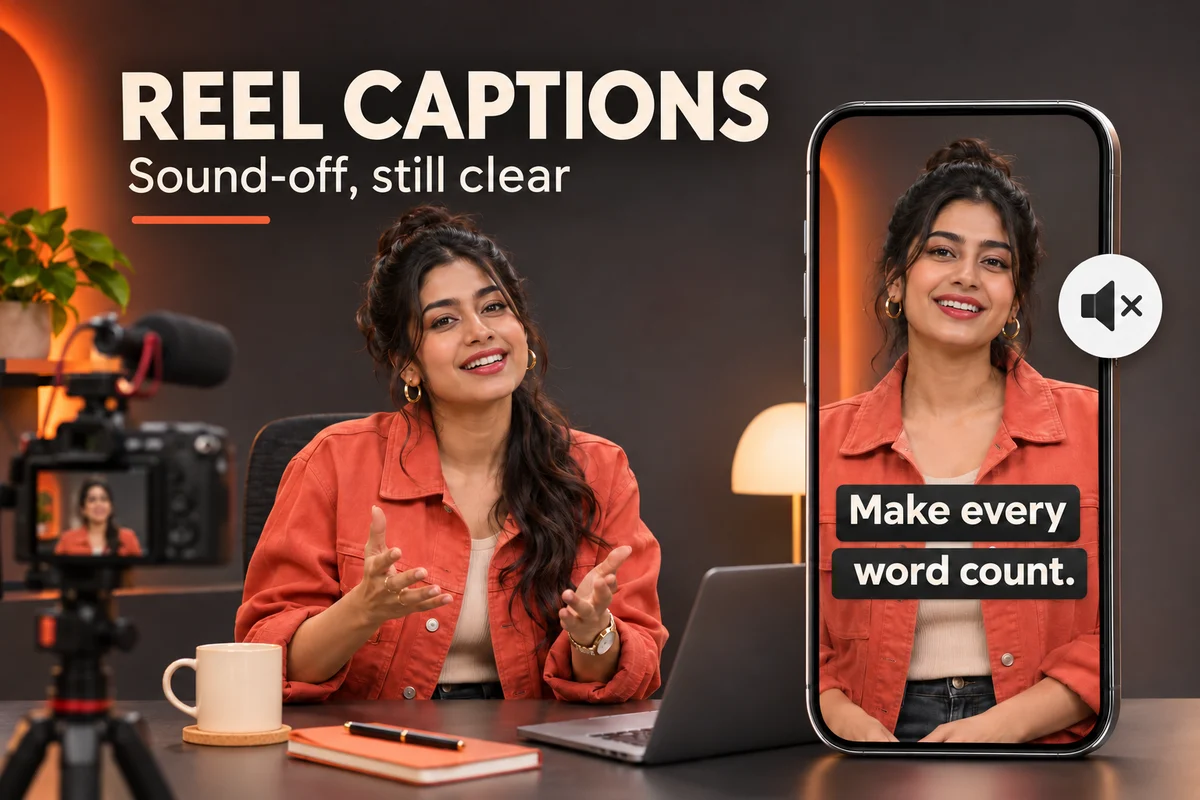
Good reel captions let someone follow the words and important sounds without turning up the volume. Before posting, check more than spelling: the text needs to arrive with the action, stay readable over moving footage and leave the subject visible.
This seven-point review helps you check reel captions while a short video plays. It works as an editing checklist whether you record your own footage or use digital video assets with suitable permissions. Start with one finished draft and review it from beginning to end.
Your seven-point caption check
1. Give reel captions and other text a clear job
People use “caption” to mean different things. Separate these three layers before editing:
- Speech captions represent spoken dialogue and relevant audio information in time with the video.
- Editorial text overlays add a headline, instruction, label or other context chosen by the creator.
- Post descriptions are the text accompanying the published post, outside the video itself.
A headline such as “Three ways to pack a lunch” does not replace the speaker’s instructions. Likewise, putting the full transcript in the post description does not make it available at the right moment during playback.
If your clip has no speech, check whether the visuals explain the idea on their own. Add a short editorial label where needed, without pretending it is spoken dialogue. Keep the post description for supporting context.
2. Correct the words against the actual audio
Play the audio while reading every caption. Check names, product terms, numbers, units and short words that change meaning. “Do not tighten yet” becomes a different instruction if the caption drops “not.” Do not rely on a quick scan of a transcript alone.
Automatic transcription is a starting point for review. YouTube explicitly advises creators to check and correct automatic captions because speech recognition can misrepresent audio, including when accents or background noise are involved. See its automatic caption guidance.
Resolve unclear words before export. Listen again, compare with the original recording or ask the speaker. Do not confidently fill a gap with a guess. If you revise the voiceover, review the captions again rather than leaving the earlier wording attached to the new audio.
3. Include sounds that explain the scene
Speech is only part of the story. A timer ringing, an off-screen knock or laughter may explain why someone reacts. When that information matters, add a concise sound description such as “[timer rings]” at the relevant moment.
Choose descriptions that communicate what can actually be heard. Do not infer an unseen event from a vague noise, or add a dramatic label just to make the scene feel busier. Describe music when its presence or character matters to understanding the sequence.
For multiple speakers, make the change clear when the picture does not already identify who is talking. A short speaker label can help. Ask yourself: if I remove the audio entirely, what information disappears that a viewer needs to understand this scene?
4. Break lines into readable phrases
Keep words that belong together on the same line where possible. A break after a complete phrase is usually easier to follow than one between a name and its title, or between a number and its unit. Read the caption aloud to find natural pauses.
For example, a spoken instruction might be: “Keep the lid closed until the timer rings.” A useful two-line arrangement is “Keep the lid closed” followed by “until the timer rings.” Avoid splitting it into “Keep the lid” and “closed until the timer rings” merely to fill the available width.
Use punctuation to clarify meaning. If a caption block becomes crowded, split it across successive moments while preserving the speech. Reserve shortened summaries for clearly separate editorial overlays rather than silently replacing the speaker’s full instruction.
5. Keep reel captions clear throughout the clip
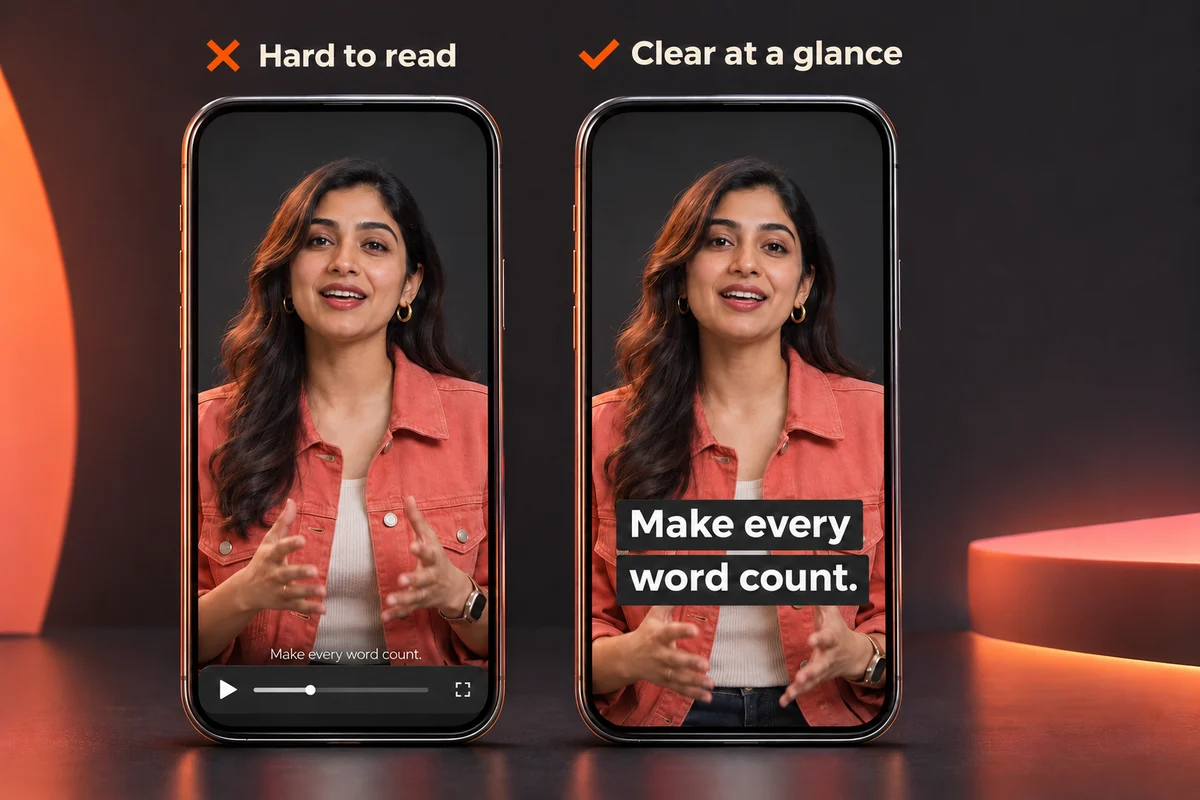
A caption can be readable on the first frame and disappear when a bright object moves behind it. Watch the entire shot, including transitions. Try a plain backing panel, stronger text contrast or a less busy position when the background competes with the words.
Keep captions away from faces, hands demonstrating a step, product details and other information viewers need to see. If the subject moves, review the full movement rather than judging a still frame. Avoid making text jump around unnecessarily just to follow every change.
There is no universal pixel margin or font size that guarantees a clear result across apps and devices. Platform controls and viewing layouts vary. Use a readable starting size, then test the exported video in the intended app with its interface visible.
6. Match the timing to speech and action
Check when each caption appears and disappears. Text that arrives late makes viewers connect earlier words to the current action. Text that appears too early can reveal a punchline or instruction before the corresponding moment.
Give each phrase enough time to read at normal playback speed. If you cannot follow the words comfortably, inspect the timing and editing pace. You may need a longer shot or a clearer voiceover rather than smaller type or faster flashing text.
YouTube provides controls for editing both caption wording and timestamps; its caption editing instructions explain that workflow. Other editors and platforms may use different controls. After trimming or reordering footage, recheck synchronization through the whole sequence, especially around cuts.
7. Run a sound-off preview before posting
Export the intended version and open the target app’s preview with the sound muted. Keep the usual controls visible. Check that interface buttons and post information do not cover essential text, and that captions do not collide with your headline or call to action.
Watch once without pausing. Can you understand the setup, instructions and ending? Then inspect any difficult moment. If the app adds a caption layer over text already embedded in the video, check for duplication and choose a clear presentation using the available settings.
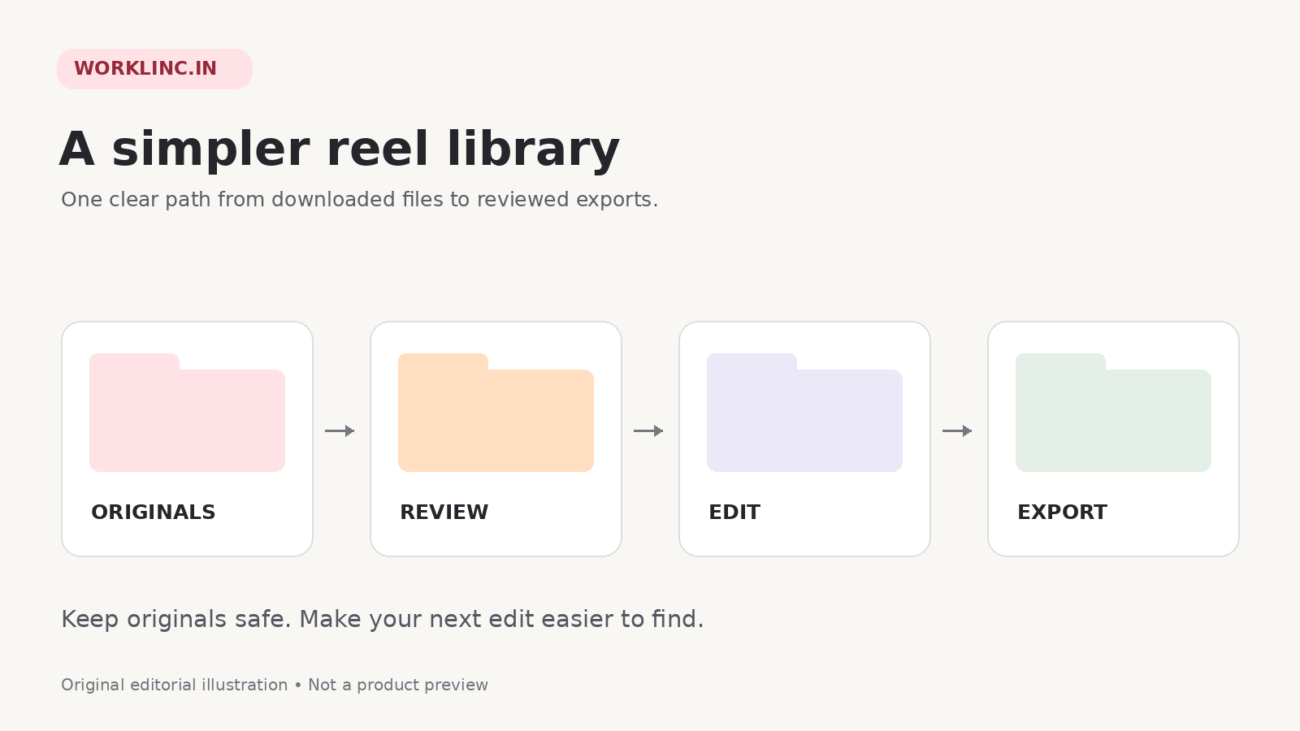
Finally, replay with sound to verify accuracy and synchronization. Keep the reviewed export separate from earlier drafts. If version mix-ups slow you down, use the workflow in How to Organize Downloaded Reels Before Editing and Posting.
Quick questions about reel captions
Are automatic captions enough?
Only after you have checked the wording, meaningful sounds, timing and final display. Treat automatic output as a draft to review.
Should I put every word in the headline?
No. Give the headline a brief editorial job and let the timed captions carry the dialogue.
Do captions guarantee more views?
No. This checklist helps you make a video easier to understand without sound; it does not promise reach or performance.
If you need source material for your next project, explore WorkLinc’s reels collections for video options or its graphics collections for supporting visual assets. Choose what suits your idea, review the individual listing and usage terms, and apply the same caption checks to your finished edit.